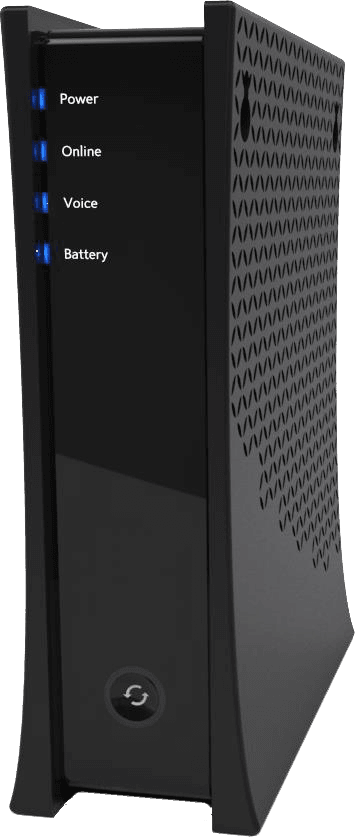
Network Modem

Spectrum Modem

Understanding Modem Lights

 Our modem uses lights to indicate its various functions. These lights can tell you if your modem is powered on, connected to the internet or transmitting data.
 

Keep in mind that your modem lights cycle during rebooting. Therefore, it’s best to wait until you’re sure the modem is finished powering on before checking the status lights.


Modem Light Labels

The lights and labels vary depending on your modem. The following tables include labels from many different modems. Check the table for the labels that are on your modem.

There are two tables – one for modems and gateways (modem-router combos) and one that lists additional labels found only on Voice modems.

Keep the following in mind while reviewing the tables:

  • Each row in the Labels column includes groups of labels that identify the same function. Only one label in each group should apply to your modem.
  • The Function column describes what each light means when it’s lit, unless otherwise indicated.
  • Please note that this table is not a comprehensive list of modems, and the lights on some modems may vary slightly from the configurations listed. Check your equipment’s user manual to learn more.
 

Internet Modems and Gateways

LabelsFunction

Ethernet

Ethernet (1 and 2)

Ethernet (1 through 4)

Link

Act (1 through 4)

The modem is connected to a LAN port.

US

Upstream

Cable Modem/Send

Send

The internet is available, and you can send or are sending data.

DS

Downstream

Cable Modem/Receive

Receive

Sync

The internet is available, and you can receive or are receiving data.
CoaxThe modem is connected via coax cable.

Power

PWR

  • AC power is available.
  • On some modems, a blinking light indicates that startup diagnostics are in progress.

WiFi

Wireless

WiFi icon

WLAN (wireless local area network)

  • If the light is on, the wireless network is enabled.
  • For some modems, if the light is blinking, there’s traffic on the wireless network.
  • If the light is off, wireless network is not on.
5GA wireless device is active on 5 G.
2.4A wireless device is active on 2.4 G.

Secure

Push ‘N’ Connect icon

WPS

  • If the light is on, wireless protected setup (WPS) is active.
  • If the light is blinking, WPS is being enabled.
  • If the light is off, WPS is unavailable.

Online

PC

The internet is available.
MoCA
  • If the light is blinking, a MoCA network device is active.
  • If the light is off, MoCA is disabled.

Cable Modem/Cable

Cable Link

WAN (cable modem)

Ready

  • If the light is on, the registration process is complete, and your gateway is operational.
  • If the light is blinking, your gateway is going through its startup and registration process.
  • If the light is off, there is no cable connectivity.
Test
  • If the light is on, a self-test of the modem has failed.
  • If the light is blinking, a self-test or software download is in progress.
  • If the light is off, either the self-test was successful or the modem is off.
Diag
  • If the light is on or blinking, your gateway (WiFi router combo) might be malfunctioning. Contact us.
  • If the light is off, your gateway is functioning normally.
Full/Col (Full Duplex/Collision)
  • If the light is on, data can be transmitted two ways simultaneously.
  • If the light is blinking, the connection made through the corresponding port is experiencing collisions. Occasional collisions are normal.
  • If the light is off, data only can be transmitted in one direction at a time.
100
  • If the light is on, a successful 100 Mbps connection is made through the corresponding port.
  • If the light is off, the connection speed on that port is 10 Mbps.
Local Area Network (LAN), ports 1 through 4
  • If the light is on and green, the port has detected a link with a 100 megabits per second (Mbps) device.
  • If the light is blinking green, data is being transmitted or received at 100 Mbps.
  • If the light is on and yellow, the port has detected link with a 10 Mbps device.
  • If the light is blinking yellow, data is being transmitted or received at 10 Mbps.
  • If the light is off, no link is detected on that port.

Activity

Cable Activity

Data

PC/Activity

PC Link

  • If the light is blinking, data is being sent or received.
  • If the light is off, no data is being sent or received.
StandbyIf the light is on, standby is enabled. Other lights turn off, and ports are disabled. Pushing the Standby button on the top of the modem should restore normal operation.
Test Icon
(check mark)
  • If the light is on, a system failure has occurred. Reboot your gateway.
  • The unit is operating normally.
Cable Link Icon (letter i)
  • If the light is on, configuration is complete.
  • If the light is off, configuration is in progress.
USB Icon
  • If the light is on, a link has been detected with a USB device.
  • If the light is blinking, data is being transmitted through the USB.
  • If the light is off, no USB link has been detected.
Email
Message
If the light is blinking, you have unread email messages.
 

Work with us to sove any problems

Send us a message to discuss your needs. We always reply within 24 hours or less.

For the quickest reply, work with us online through your booking application.

Scroll to Top